



第一章
第二章
第三章
第四章
第五章
第六章
第七章
第八章


Android 开发手册
本节引言:
上一节中我们使用LinearLayout + TextView实现了底部导航栏的效果,每次点击我们都要重置 所有TextView的状态,然后选中点击的TextView,有点麻烦是吧,接下来我们用另一种方法: RadioGroup + RadioButton来实现我们上一节的效果!
1.一些碎碎念
本节用到的是实现单选效果的RadioButton,如果你不熟悉,或者没用过,可先移步到:RadioButton简单点说就是我们就是一个RadioGroup包着四个RadioButton,和前面一样用比例来划分:1:1:1:1;
另外我们只需重写RadioGroup的onCheckedChange,判断checkid即可知道点击的是哪个RadioButton!
好的,下面开始堆码!
2.实现流程
PS:这里的素材什么的,直接使用的是上一节中的素材!另外drawable类的资源都是将selected 状态修改成checked!
Step 1:写底部选项的一些资源文件
图片Drawable资源:tab_menu_channel.xml
<selector xmlns:android="http://schemas.android.com/apk/res/android">
<item android:drawable="@mipmap/tab_channel_pressed" android:state_checked="true" />
<item android:drawable="@mipmap/tab_channel_normal" />
</selector>
其他三个照葫芦画瓢!
文字资源:tab_menu_text.xml
<selector xmlns:android="http://schemas.android.com/apk/res/android">
<item android:color="@color/text_yellow" android:state_checked="true" />
<item android:color="@color/text_gray" />
</selector>
背景资源:tab_menu_bg.xml
<selector xmlns:android="http://schemas.android.com/apk/res/android">
<item android:state_selected="true">
<shape>
<solid android:color="#FFC4C4C4" />
</shape>
</item>
<item>
<shape>
<solid android:color="@color/transparent" />
</shape>
</item>
</selector>
Step 2:编写我们的Activity布局
在前面用TextView实现底部导航栏我们就发现了一个问题,每个TextView的属性都几乎是差不多 的,而在建议那里我们也说让大家把相同的属性抽取出来写到Style中,可能部分朋友懒或者不知道 如何抽取出来,以及用,这里就给大家示范下:
首先我们取出其中一个RadioGroup的标签:
android:id="@+id/rb_channel"
android:layout_width="0dp"
android:layout_height="match_parent"
android:layout_weight="1"
android:background="../style/images/tab_menu_bg"
android:button="@null"
android:drawableTop="@drawable/tab_menu_channel"
android:gravity="center"
android:paddingTop="3dp"
android:text="@string/tab_menu_alert"
android:textColor="@drawable/tab_menu_text"
android:textSize="18sp" />
我们可以把每个RadioButton都相同的属性抽取出来,写到style.xml文件中:
<item name="android:layout_width">0dp</item>
<item name="android:layout_weight">1</item>
<item name="android:layout_height">match_parent</item>
<item name="android:background">@drawable/tab_menu_bg</item>
<item name="android:button">@null</item>
<item name="android:gravity">center</item>
<item name="android:paddingTop">3dp</item>
<item name="android:textColor">@drawable/tab_menu_text</item>
<item name="android:textSize">18sp</item>
</style>
然后我们的activity_main.xml中的RadioButton就用不着次次都写相同的代码了, 只需让RadioButton的style="@style/tab_menu_item"就可以了!
activity_main.xml:
xmlns:tools="http://schemas.android.com/tools"
android:layout_width="match_parent"
android:layout_height="match_parent"
android:background="../style/images/bg_gray"
tools:context=".MainActivity">
<RelativeLayout
android:id="@+id/ly_top_bar"
android:layout_width="match_parent"
android:layout_height="48dp"
android:background="../style/images/bg_topbar">
<TextView
android:id="@+id/txt_topbar"
android:layout_width="match_parent"
android:layout_height="match_parent"
android:layout_centerInParent="true"
android:gravity="center"
android:text="信息"
android:textColor="@color/text_topbar"
android:textSize="18sp" />
<View
android:layout_width="match_parent"
android:layout_height="2px"
android:layout_alignParentBottom="true"
android:background="../style/images/div_white" />
</RelativeLayout>
<RadioGroup
android:id="@+id/rg_tab_bar"
android:layout_width="match_parent"
android:layout_height="56dp"
android:layout_alignParentBottom="true"
android:background="../style/images/bg_white"
android:orientation="horizontal">
<RadioButton
android:id="@+id/rb_channel"
style="@style/tab_menu_item"
android:drawableTop="@drawable/tab_menu_channel"
android:text="@string/tab_menu_alert" />
<RadioButton
android:id="@+id/rb_message"
style="@style/tab_menu_item"
android:drawableTop="@drawable/tab_menu_message"
android:text="@string/tab_menu_profile" />
<RadioButton
android:id="@+id/rb_better"
style="@style/tab_menu_item"
android:drawableTop="@drawable/tab_menu_better"
android:text="@string/tab_menu_pay" />
<RadioButton
android:id="@+id/rb_setting"
style="@style/tab_menu_item"
android:drawableTop="@drawable/tab_menu_setting"
android:text="@string/tab_menu_setting"/>
</RadioGroup>
<View
android:id="@+id/div_tab_bar"
android:layout_width="match_parent"
android:layout_height="2px"
android:layout_above="@id/rg_tab_bar"
android:background="../style/images/div_white" />
<FrameLayout
android:id="@+id/ly_content"
android:layout_width="match_parent"
android:layout_height="match_parent"
android:layout_above="@id/div_tab_bar"
android:layout_below="@id/ly_top_bar"></FrameLayout>
</RelativeLayout>
Step 3:隐藏顶部导航栏
AndroidManifest.xml设置下theme属性
Step 4:创建一个Fragment的简单布局与类:
直接照搬上一节的布局跟Fragment:
fg_content.xml:
<LinearLayout xmlns:android="http://schemas.android.com/apk/res/android"
android:orientation="vertical" android:layout_width="match_parent"
android:layout_height="match_parent"
android:background="../style/images/bg_white">
<TextView
android:id="@+id/txt_content"
android:layout_width="match_parent"
android:layout_height="match_parent"
android:gravity="center"
android:text="呵呵"
android:textColor="@color/text_yellow"
android:textSize="20sp"/>
</LinearLayout>
MyFragment.java:
* Created by Coder-pig on 2015/8/29 0028.
*/
public class MyFragment extends Fragment {
private String content;
public MyFragment(String content) {
this.content = content;
}
@Override
public View onCreateView(LayoutInflater inflater, ViewGroup container, Bundle savedInstanceState) {
View view = inflater.inflate(R.layout.fg_content,container,false);
TextView txt_content = (TextView) view.findViewById(R.id.txt_content);
txt_content.setText(content);
return view;
}
}
Step 5:编写MainActivity.java
这个比起TextView实现简单多了,就不详细讲解了,很简单,直接上代码:
MainActivity.java
* Created by Coder-pig on 2015/8/29 0028.
*/
public class MainActivity extends AppCompatActivity implements RadioGroup.OnCheckedChangeListener{
private RadioGroup rg_tab_bar;
private RadioButton rb_channel;
//Fragment Object
private MyFragment fg1,fg2,fg3,fg4;
private FragmentManager fManager;
@Override
protected void onCreate(Bundle savedInstanceState) {
super.onCreate(savedInstanceState);
setContentView(R.layout.activity_main);
fManager = getFragmentManager();
rg_tab_bar = (RadioGroup) findViewById(R.id.rg_tab_bar);
rg_tab_bar.setOnCheckedChangeListener(this);
//获取第一个单选按钮,并设置其为选中状态
rb_channel = (RadioButton) findViewById(R.id.rb_channel);
rb_channel.setChecked(true);
}
@Override
public void onCheckedChanged(RadioGroup group, int checkedId) {
FragmentTransaction fTransaction = fManager.beginTransaction();
hideAllFragment(fTransaction);
switch (checkedId){
case R.id.rb_channel:
if(fg1 == null){
fg1 = new MyFragment("第一个Fragment");
fTransaction.add(R.id.ly_content,fg1);
}else{
fTransaction.show(fg1);
}
break;
case R.id.rb_message:
if(fg2 == null){
fg2 = new MyFragment("第二个Fragment");
fTransaction.add(R.id.ly_content,fg2);
}else{
fTransaction.show(fg2);
}
break;
case R.id.rb_better:
if(fg3 == null){
fg3 = new MyFragment("第三个Fragment");
fTransaction.add(R.id.ly_content,fg3);
}else{
fTransaction.show(fg3);
}
break;
case R.id.rb_setting:
if(fg4 == null){
fg4 = new MyFragment("第四个Fragment");
fTransaction.add(R.id.ly_content,fg4);
}else{
fTransaction.show(fg4);
}
break;
}
fTransaction.commit();
}
//隐藏所有Fragment
private void hideAllFragment(FragmentTransaction fragmentTransaction){
if(fg1 != null)fragmentTransaction.hide(fg1);
if(fg2 != null)fragmentTransaction.hide(fg2);
if(fg3 != null)fragmentTransaction.hide(fg3);
if(fg4 != null)fragmentTransaction.hide(fg4);
}
}
PS:在上一节忘记讲一点了,FragmentTransaction只能使用一次,每次使用都要调用FragmentManager 的beginTransaction()方法获得FragmentTransaction事务对象哦!
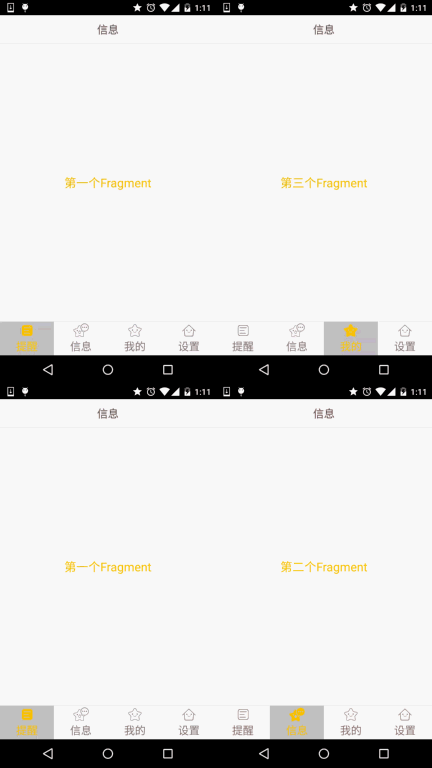
3.运行效果图
其实和上一节实现的效果是一样的:
4.代码下载:
FragmentDemo2.zip:FragmentDemo2.zip 下载
5.本节小结:
本节讲解的是实现底部导航栏的第二种方法:RadioGroup + RadioButton,有了单选,我们 就不用像TextView一样,每次点击后先重置所有TextView的Selected状态,再让点击的TextView 的Selected为true,这样就可以写少一点代码了~本节就到这里~谢谢
相关视频


24小时阅读榜
精品课程


共22课时
24.5万人学习

共28课时
36.4万人学习

共89课时
134.1万人学习
热门下载

集成PHP7,16种组合,超全大合集
下载

phpStudy安装所需运行库集合下载
下载


程序员工具箱 v1.0 php集成环境
下载


中文版,非常好用
下载

Notepad++ 8.9.7 Windows版官方安装包,适合 Windows 用户进行代码编辑、文本处理、语法高亮和插件扩展配置。
下载

Win64位,支持php多版本共存
下载