本文主要介绍了浅谈css网页的几种布局的相关资料,小编觉得挺不错的,现在分享给大家,也给大家做个参考。一起跟随小编过来看看吧,希望能帮助到大家。
2018年已经过了一周,总结一下2017年在公司wiki上写的一篇关于css布局的知识,当时也借鉴了几个大神写的css布局知识,和自己在项目中遇到的坑。废话不多说。请看以下的干货。
1、左边固定,右边自适应布局的两种实现方式
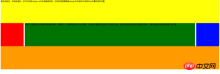
效果图如下:
大屏展示:

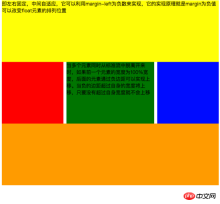
小屏展示:

第一种实现方式通过负边距与浮动 实现左边固定,右边自适应的布局。 主要代码如下:
<style>
	.left{
		float: left;
		width: 100%;
		height: 200px;
		background-color: red;
	}
	.left-content{
		margin-left: 30%;
	}
	.right{
		float: left;
		width: 30%;
		margin-left: -100%;
		height: 200px;
		background-color: green;
	}
	.layout0{
		clear: both;
		width: 100px;
		height: 100px;
		background-color: yellow;
	}
</style><p>
		</p><p>
			</p><p>
				设置子元素的margin,然后父元素必须浮动。
				用父元素包裹,主要是因为right会覆盖left,从而导致left内容不可以看到,如果直接在left上设置margin或者padding会导致布局变化,因此只能再用一个p包裹内容,并且去除right覆盖的宽度。
			</p>

		<p>-margin必须大于或等于自身的宽度才会上移</p>
		<p></p><div class="aritcle_card flexRow artxards">
											<div class="artcardd flexRow">
												<a class="aritcle_card_img" rel="nofollow" href="/xiazai/skill11112" title="CSS工具箱(专业版)"><img
														src="https://img.php.cn/upload/skill/001/246/273/6adaf20e352aa140.jpg" alt="CSS工具箱(专业版)" onerror="this.onerror='';this.src='/static/lhimages/moren/morentu.png'" ></a>
												<div class="aritcle_card_info flexColumn">
													<a rel="nofollow" href="/xiazai/skill11112" title="CSS工具箱(专业版)" class="overflowclass">CSS工具箱(专业版)</a>
													<p class="overflowclass">全功能 CSS 工程手册,覆盖性能优化、无障碍、设计系统与跨浏览器兼容。</p>
												</div>
												<a rel="nofollow" href="/xiazai/skill11112" title="CSS工具箱(专业版)" class="aritcle_card_btn flexRow flexcenter"><b></b><span>下载</span>
												</a>
											</div>
										</div>
实现过程中需要注意的是:
1.自适应的容器需要容器包裹住,否则容器内的内容会被覆盖。
2.right容器的负边距必须大于或等于自身的宽度才会上移。
3.如果right容器负边距等于自身的宽度它会靠右对齐,如果负边距等于-100%,则会靠左对齐。
第二种 通过浮动布局来实现左边固定,右边自适应的布局
主要的代码如下:
<style>
	.left{
		float: left;
		width: 200px;
		height: 200px;
		background-color: yellow;
	}
	.right{
		padding-left: 200px;
		height: 200px;
		background-color: red;
	}
	@media (min-width: 650px) and (max-width: 1000px){
		.left{
			width: 150px;
		}
		.right{
			margin-left: 150px;
		}
	}
	@media (max-width: 640px){
		.left{
			width: 100px;
		}
		.right{
			margin-left: 100px;
		}
	}
</style><p>
		</p><p>左边固定宽度,右边自适应</p>
		<p></p>
实现过程中需要注意的是: 1. left需要脱离文档流,而right只需要正常显示就可以。
2.left只是覆盖在right上边,因此想要让right内容完整显示需要给right padding-left或者margin-left。
大屏展示:
小屏展示:
主要代码如下:
<style>
	#head{
		height: 200px;
		background-color: yellow;
	}
	#body{
		width: 100%;
		float: left;
	}
	.main{
		background-color: green;
		min-height: 200px;
		margin: 0 210px;
	}
	.left{
		float: left;
		background-color: red;
		width: 200px;
		height: 200px;
		margin-left: -100%;
	}
	.right{
		float: right;
		background-color: blue;
		width: 200px;
		height: 200px;
		margin-left: -200px;
	}
	#footer{
		clear: both;
		height: 200px;
		background-color: orange;
	}
</style><p>即左右固定,中间自适应,它可以利用margin-left为负数来实现,它的实现原理就是margin为负值可以改变float元素的排列位置</p>
	<p>
		</p><p>当多个元素同时从标准流中脱离开来时,如果前一个元素的宽度为100%宽度,后面的元素通过负边距可以实现上移。当负的边距超过自身的宽度将上移,只要没有超过自身宽度就不会上移</p>

	<p></p>
	<p></p>
	<p></p>
实现过程中需要注意:
1.中间自适应的p需要放在left和right容器前面并且内容p需要用父容器包裹
2.left和right容器向同一个方向浮动。
主要代码如下:
<style>
	#head{
		height: 200px;
		background-color: yellow;
	}
	#body{
		overflow: hidden;
	}
	.left{
		float: left;
		background-color: red;
		width: 200px;
		height: 200px;
	}
	.right{
		float: right;
		background-color: blue;
		width: 200px;
		height: 200px;
	}
	.main{
		background-color: green;
		height: 200px;
		margin: 0 210px;
	}
	#footer{
		clear: both;
		height: 200px;
		background-color: orange;
	}
</style><p>左右固定宽度并且向两边浮动,中间的p设置两边的margin</p>
	<p>
		</p><p></p>
		<p></p>
		<p>该方案有一个缺陷,在小屏幕情况下回导致right被挤下去,main没有了</p>

	<p></p>
实现过程中需要注意:
1.该方式只需要注意中间自适应的p需要放在left和right容器的后面。
2.left和right容器向两边浮动。
主要代码如下:
html>

<meta><title>使用flex 实现“双飞翼布局”</title><style>
	#main{
		display: flex;
		display: -webkit-flex;//谷歌浏览器加前缀
		flex-flow: row nowrap;
		justify-content: flex-start;
		align-items: center;
	}
	.left{
		flex: 0 0 auto;
		width:100px;
		height: 200px;
		background-color: red;
		word-wrap: break-word;
		overflow: hidden;
	}
	.main{
		flex: 1 1 auto;
		height: 200px;
		background-color: green;
	}
	.right{
		flex: 0 0 auto;
		width: 100px;
		height: 200px;
		background-color: yellow;
	}
</style><p>
		</p><p>flex 语法我参照了阮一峰关于flex语法介绍 http://www.ruanyifeng.com/blog/2015/07/flex-grammar.html</p>
		<p></p>
		<p></p>
如果未了解过flex布局请移至文末点击链接查看 阮一峰大神写的关于flex语法
3、定位布局
这边就不絮絮叨叨的讲一些基础的css定位知识了(ps:不会的请自行到w3c官网查阅),我主要来讲解一下工作中遇到的坑。以免其他人和我一样掉入坑中。
第一:使用多个fixed时,注意自己需要基于什么定位,因为如果父级有用transform属性时,可能会导致子元素的fixed基于父元素容器定位,而不是基于body定位。效果如下:
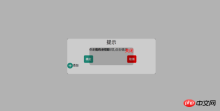
在上图中我可以发现中间黑色的小框是基于父级来定位,并且宽度也基于父容器的50%。详细的请看下面代码:
html>


    <title>关于position的定位的坑</title><style>
    body{
        margin: 0;
        padding: 0;
    }
    i{
        font-style: normal;
        cursor: pointer;
    }
    #delete-button{
        position: absolute;
        left: 45%;
        top: 45%;
        text-align: center;
        vertical-align: middle;
        height: 50px;
        margin: auto;
        cursor: pointer;
    }
    #delete-button > i{
        display: inline-block;
        width: 32px;
        height: 32px;
        border-radius: 16px;
        background-color: orange;
        color: red;
        font-size: 32px;
        vertical-align: middle;
        line-height: 28px;
    }
    /*第一个模态框的样式*/
    #layout{
        display: none;
        width: 100%;
        height: 100%;
    }
    /*使用flex布局水平竖直居中*/
    /*#layout-box{
        position: fixed;
        width: 100%;
        height: 100%;
        left: 0;
        top: 0;
        display: flex;
        display: -webkit-flex;
        flex-flow: column nowrap;
        justify-content: center;
        align-items: center;
        background-color: rgba(0,0,0,0.3);
    }*/
    /*使用postion 和 transform 水平垂直居中*/
    #layout-box{
        position: fixed;
        width: 100%;
        height: 100%;
        background-color: rgba(0,0,0,0.3);
    }
    .modal-dialog{
        position: absolute;
        left: 50%;
        top: 50%;
        width: 500px;
        height: 200px;
        border-radius: 10px;
        transform: translate(-50%, -50%);
        -webkit-transform: translate(-50%, -50%);
        -moz-transform: translate(-50%, -50%);
        -o-transform: translate(-50%, -50%);
        background-color: #fff;
    }
    .dialog-title{
        text-align: center;
        color: #333;
        font-size: 28px;
        margin-bottom: 10px;
    }
    .dialog-content{
        text-align: center;
        color: #666;
        font-size: 18px;
    }
    .dialog-button{
        margin-top: 20px;
        width: 100%;
        color: #333;
    }
    .dialog-button >.button-box{
        display: inline-block;
        width: 48%;
        text-align: center;
    }
    .button-box span{
        display: inline-block;
        padding: 10px;
        color: #fff;
        border-radius: 6px;
        cursor: pointer;
    }
    #confirm{
        background-color: #27ad9a;
    }
    #cancel{
        background-color: red;
    }
    /*添加按钮的样式*/
    #add-button > i{
        display: inline-block;
        width: 32px;
        height: 32px;
        border-radius: 16px;
        background-color: #27ad9a;
        color: #fff;
        font-size: 32px;
        vertical-align: middle;
        line-height: 28px;
        text-align: center;
    }
    #add-button{
        display: inline-block;
        cursor: pointer;
    }
    /*第二个模态框的样式*/
    .layout2{
        display: none;
        position: fixed;
        width: 100%;
        height: 100%;
        left: 0;
        top: 0;
        background-color: rgba(0,0,0,0.2);
    }
    .modal-dialog2{
        position: fixed;
        left: 50%;
        top: 50%;
        width: 50%;
        height: 50%;
        border-radius: 10px;
        transform: translate(-50%, -50%);
        -webkit-transform: translate(-50%, -50%);
        -moz-transform: translate(-50%, -50%);
        -o-transform: translate(-50%, -50%);
        background-color: rgba(0,0,0,0.2);
    }
    .modal-dialog2 > span{
        display: block;
    }
    .modal-text{
        float: left;
    }
    #close{
        color: red;
        font-size: 24px;
        float: right;
        cursor: pointer;
    }
</style>
    <p><i>-</i>删除</p>
    <p>
        </p><p>
            </p><p>
                </p><p>提示</p>
                <p>是否删除该项,点击确定</p>
                <p>
                    </p><p>
                        <span>确定</span>
                    </p>
                    <p>
                        <span>取消</span>
                    </p>

                <p><i>+</i>添加</p>
                <p>
                    </p><p>
                        <span>你是我的小可爱</span>
                        <span>关闭</span>
                    </p>


<script>
    document.getElementById("delete-button").onclick= function(){
        var layout = document.getElementById("layout")
        layout.style.display = "block"
    }
    document.getElementById("confirm").onclick=function(){
        var layout = document.getElementById("layout")
        layout.style.display = "none"
    }
    document.getElementById("cancel").onclick=function(){
        var layout = document.getElementById("layout")
        layout.style.display = "none"
    }
    document.getElementById("add-button").onclick=function(){
        var layout = document.getElementsByClassName("layout2")
        layout[0].style.display = "block"
    }
    document.getElementById("close").onclick=function(){
        var layout = document.getElementsByClassName("layout2")
        layout[0].style.display = "none"
    }
</script>
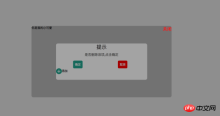
如果我们尝试把父容器上的transform属性去除,我们可以看到 子容器没有基于父容器定位,而是基于body定位的,宽度也是基于body给的50%宽度。效果图如下:
详细请看代码:
html>


    <title>关于position的定位的坑</title><style>
    body{
        margin: 0;
        padding: 0;
    }
    i{
        font-style: normal;
        cursor: pointer;
    }
    #delete-button{
        position: absolute;
        left: 45%;
        top: 45%;
        text-align: center;
        vertical-align: middle;
        height: 50px;
        margin: auto;
        cursor: pointer;
    }
    #delete-button > i{
        display: inline-block;
        width: 32px;
        height: 32px;
        border-radius: 16px;
        background-color: orange;
        color: red;
        font-size: 32px;
        vertical-align: middle;
        line-height: 28px;
    }
    /*第一个模态框的样式*/
    #layout{
        display: none;
        width: 100%;
        height: 100%;
    }
    /*使用flex布局水平竖直居中*/
    #layout-box{
        position: fixed;
        width: 100%;
        height: 100%;
        left: 0;
        top: 0;
        display: flex;
        display: -webkit-flex;
        flex-flow: column nowrap;
        justify-content: center;
        align-items: center;
        background-color: rgba(0,0,0,0.3);
    }
    /*使用postion 和 transform 水平垂直居中*/
    .modal-dialog{
        width: 500px;
        height: 200px;
        border-radius: 10px;
        background-color: #fff;
    }
    .dialog-title{
        text-align: center;
        color: #333;
        font-size: 28px;
        margin-bottom: 10px;
    }
    .dialog-content{
        text-align: center;
        color: #666;
        font-size: 18px;
    }
    .dialog-button{
        margin-top: 20px;
        width: 100%;
        color: #333;
    }
    .dialog-button >.button-box{
        display: inline-block;
        width: 48%;
        text-align: center;
    }
    .button-box span{
        display: inline-block;
        padding: 10px;
        color: #fff;
        border-radius: 6px;
        cursor: pointer;
    }
    #confirm{
        background-color: #27ad9a;
    }
    #cancel{
        background-color: red;
    }
    /*添加按钮的样式*/
    #add-button > i{
        display: inline-block;
        width: 32px;
        height: 32px;
        border-radius: 16px;
        background-color: #27ad9a;
        color: #fff;
        font-size: 32px;
        vertical-align: middle;
        line-height: 28px;
        text-align: center;
    }
    #add-button{
        display: inline-block;
        cursor: pointer;
    }
    /*第二个模态框的样式*/
    .layout2{
        display: none;
        position: fixed;
        width: 100%;
        height: 100%;
        left: 0;
        top: 0;
        background-color: rgba(0,0,0,0.2);
    }
    .modal-dialog2{
        position: fixed;
        left: 50%;
        top: 50%;
        width: 50%;
        height: 50%;
        border-radius: 10px;
        transform: translate(-50%, -50%);
        -webkit-transform: translate(-50%, -50%);
        -moz-transform: translate(-50%, -50%);
        -o-transform: translate(-50%, -50%);
        background-color: rgba(0,0,0,0.2);
    }
    .modal-dialog2 > span{
        display: block;
    }
    .modal-text{
        float: left;
    }
    #close{
        color: red;
        font-size: 24px;
        float: right;
        cursor: pointer;
    }
</style>
    <p><i>-</i>删除</p>
    <p>
        </p><p>
            </p><p>
                </p><p>提示</p>
                <p>是否删除该项,点击确定</p>
                <p>
                    </p><p>
                        <span>确定</span>
                    </p>
                    <p>
                        <span>取消</span>
                    </p>

                <p><i>+</i>添加</p>
                <p>
                    </p><p>
                        <span>你是我的小可爱</span>
                        <span>关闭</span>
                    </p>


<script>
    document.getElementById("delete-button").onclick= function(){
        var layout = document.getElementById("layout")
        layout.style.display = "block"
    }
    document.getElementById("confirm").onclick=function(){
        var layout = document.getElementById("layout")
        layout.style.display = "none"
    }
    document.getElementById("cancel").onclick=function(){
        var layout = document.getElementById("layout")
        layout.style.display = "none"
    }
    document.getElementById("add-button").onclick=function(){
        var layout = document.getElementsByClassName("layout2")
        layout[0].style.display = "block"
    }
    document.getElementById("close").onclick=function(){
        var layout = document.getElementsByClassName("layout2")
        layout[0].style.display = "none"
    }
</script>
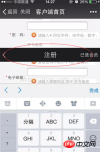
第二:解决在手机上的抖动问题(ps:这个问题我参照了网上大神写的一篇博客请移至文末查看)
**一、**在webkit内核浏览器中 给fixed加上防抖样式 - webkit - transform: translateZ(0);
**二、**设置html 和body 的css {height:100%;overflow:auto;margin:0;} 这个影响全局样式不建议使用。
三、在fiexd内设置position:absolute,如下:
<p>
  </p><p>
  </p>
4、百分比布局 主要通过设置元素的宽度为百分比或者高度为百分比。比如:width:50%; height:50%; 这样的写法。
5、响应式布局(主要使用媒体查询来实现响应式设计) 主要使用CSS3 @media 来做不同终端的响应式设计
主要在css文件中写入
@media screen and (max-width:600px){
    写入当屏幕小于或等于600px时的样式
}
@media screen and (min-width:900px){
    写入当屏幕大于或等于900px时的样式
}
@media screen and (min-width:600px) and (max-width:900px){
    写入当屏幕在600px-900px之间的样式
}
@media screen and (max-device-width: 480px){
    写入最大设备宽度为480px,比如说iPhone上的显示,这里的max-device-width所指的是设备的实际分辨率,也就是指可视面积分辨率
}
@media only screen and (-webkit-min-device-pixel-ratio: 2){
    写入专门针对iPhone4的移动设备样式
}
@media all and (orientation:portrait){
    写入设备在纵向时的样式
}
@media all and (orientation:landscape){
    写入设备在横向时的样式
}
@media not print and (max-width: 1200px){
    not是用来排除某种制定的媒体类型
    写入在除打印设备和设备宽度小于1200px下的所有设备的样式
}
@media only screen and (max-device-width:240px){
    only用来定某种特定的媒体类型,可以用来排除不支持媒体查询的浏览器。
    写入只能在最大设备宽度为240px的屏幕下使用的样式
}
相关推荐:
前端入门到VUE实战笔记:立即使用
在学习笔记中,你将探索 前端 的入门与实战技巧!