


atom-beautify和prettier-atom默认均不启用保存自动格式化,须逐语言手动开启beautify on save或format on save;atom-beautify需正确识别language-id、安装apm版cli工具并配置文件类型映射,prettier-atom需禁用linter-eslint的fix on save、手动添加.vue等language id且仅读取prettier.config.js。

atom-beautify 和 prettier-atom 都能实现保存时自动格式化,但默认都不开——不是装完就生效,而是得逐语言手动开、配对、校验环境。
beautify_on_save 必须按语言单独开启
atom-beautify 的 Beautify On Save 开关是语言隔离的:JavaScript 开了,CSS 没勾,保存 .css 文件就完全没反应。
操作路径:Settings → Packages → atom-beautify → Settings → 向下滚动到「Language Specific Options」→ 展开 javascript、css、html 等区块 → 每个都手动勾选 Beautify On Save
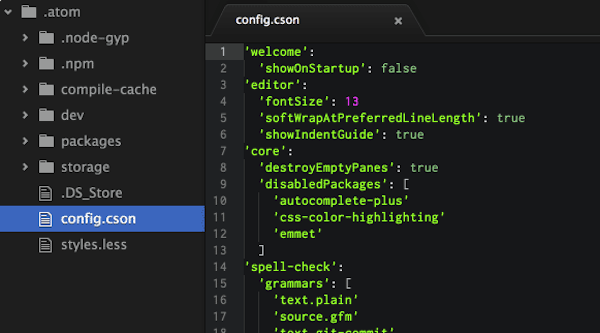
注意:.vue 文件默认被识别为 text.html.basic,<script></script> 块不会触发 JS 格式化;必须手动点右下角 language-id 切成 Vue Component,或在 Config → Core → File Types 中加映射:"*.vue": ["source.vue"]
常见坑:勾了全局 On Save,但没进语言区块里再勾一次——等于白开。
prettier-atom 的 formatOnSave 与 linter-eslint 冲突
prettier-atom 默认启用 Format on save,但它和 linter-eslint 共存时容易互相覆盖:
-
linter-eslint若开了Fix on save,会抢在 Prettier 前修改代码,导致格式反复跳动、光标错位 - 必须进
linter-eslint设置 → 关掉Fix on save -
prettier-atom不处理.vue或.svelte,需在插件设置里手动添加 language ID:vue、svelte - 配置文件读取顺序:只认
prettier.config.js,忽略同目录下的.prettierrc
快捷键 Ctrl+S 要重绑,否则“格式化但没保存”
Atom 默认把ctrl-s 绑定到 core:save,你只加一条 prettier:format,两个命令会并发执行:先格式化,再立刻用旧内容覆盖保存——看起来像没反应。
正确做法:
- 打开
keymap.cson(菜单 → Atom → Open Your Keymap) - 先取消默认绑定:
'*': 'ctrl-s': 'unset!' - 再按语言范围重绑:
'.source.js': 'ctrl-s': 'prettier:format',或'.source.css': 'ctrl-s': 'atom-beautify:beautify-editor' - 同时确保对应插件的
Format on save也已开启,否则未保存缓冲区可能静默失败
beautifier not found?别 npm install,用 apm
atom-beautify 是调度器,不自带格式化引擎;报 beautifier not found 说明它找不到 js-beautify 或 prettier 模块。
npm 安装无效——Atom 运行在自己的 Node.js 环境里,和终端不是同一个上下文:
- 统一用
apm install js-beautify(不是npm install -g) - 已装过仍报错?运行
apm rebuild,尤其 Atom 升级后必做 - Windows 用户若遇 PowerShell 执行策略拦截,临时运行:
Set-ExecutionPolicy RemoteSigned -Scope CurrentUser - C/C++、Python 等需额外 CLI 工具:如
uncrustify、autopep8,且其可执行文件必须在系统PATH中
最后检查右下角 language-id:显示 Plain text 或 Auto 就直接失效,必须手动切到明确类型(如 JavaScript)。


