本篇文章给大家带来的内容是介绍js实现移动端touch轮播图的方法,有一定的参考价值,有需要的朋友可以参考一下,希望对你有所帮助。
Touch 轮播图
touch轮播图其实就是通过手指的滑动,来左右切换轮播图,下面我们通过一个案例,来实现下。
1. html 结构
结构上,还是用ul、li来存放轮播图片,ol、li来存放轮播小圆点:
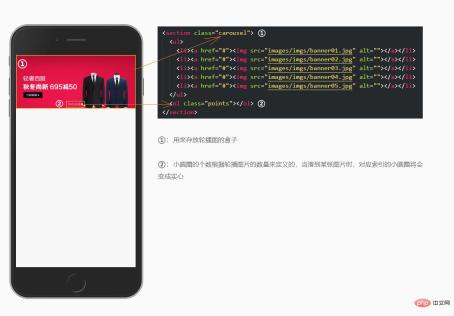
2. 样式初始化
html的一些标签,都会有一些默认样式,比如body标签默认是有一个边距的,为了不影响美观,我们需要清除掉。
/* 清除标签默认边距 */
body,ul,li,ol,img {
    margin: 0;
    padding: 0;
}

/* 清除 ul 等标签前面的“小圆点” */
ul,li,ol {
    list-style-type: none;
}

/* 图片自适应 */
img {
    width: 100%;
    height: auto;
    border: none;
    /* ie8 */
    display: block;
    -ms-interpolation-mode: bicubic; /*为了照顾ie图片缩放失真*/
}

3. 添加样式
在前面讲特效的时候,我们说过如何使用原生js实现移一个轮播图的概念,但是当时的方式是通过li浮动,这里给大家介绍一种新的方——定位。
思路:
给
ul外层的盒子一个相对定位;这里的
ul高度不能写死,它应该是li撑开的高度,但是由于li绝对定位,没办法撑开这个高度,所以这里的ul需要在js里面动态设置高度;给
li设置相对定位,并且left、top都为0,再给li添加一个transform:translateX(300%)属性,目的是初始化显示的图片为空,然后在js里只需要动态设置每个li的translateX值,即可实现轮播;设置小圆点区域,因为小圆点个数未知,所以
ol的宽度也未知,想要让一个未知宽度的盒子水平居中,可以使用absolute定位结合left百分比的方式实现;给
ol下面的li设置一个宽高添加圆角边框属性,并且左浮动,这样就能显示一排空心的小圆点了;最后,添加一个样式类,里面设置一个背景属性,用来显示当前展示图片对应的小圆点。
/* 轮播图最外层盒子 */
.carousel {
    position: relative;
    overflow: hidden;
}

.carousel ul {
    /* 这个高度需要在JS里面动态添加 */
}

.carousel ul li {
    position: absolute;
    width: 100%;
    left: 0;
    top: 0;
    /* 使用 transform:translaX(300%) 暂时将 li 移动到屏幕外面去*/
    -webkit-transform: translateX(300%);
    transform: translateX(300%);
}

/* 小圆点盒子 */
.carousel .points {
    /* 未知宽度的盒子,使用 absolute 定位,结合 transform 的方式进行居中 */
    position: absolute;
    left: 50%;
    bottom: 10px;
    transform: translateX(-50%);
}

/* 小圆点 */
.carousel .points li {
    width: 5px;
    height: 5px;
    border-radius: 50%;
    border: 1px solid #fff;
    float: left;
    margin: 0 2px;
}

/* 选中小圆点的样式类 */
.carousel .points li.active {
    background-color: #fff;
}

4. js 准备工作
先不考虑别的,js在初始化的时候,首先要做的就是给ul添加上一个高度,不然图片是不显示的。
给
UL动态设置高度动态生成小圆点 (根据图片的张数创建小圆点个数,
i=0添加active)初始化三个
li的基本位置定义三个变量,分别用来存储三个
li的下(left存储最后一张图片的下标,center和right分别存储第一张和第二张的下标)通过
数组[下标]的方式给三个li设置定位后left方向的位置
var carousel = document.querySelector('.carousel');
var carouselUl = carousel.querySelector('ul');
var carouselLis = carouselUl.querySelectorAll('li');
var points = carousel.querySelector('ol');
// 屏幕的宽度(轮播图显示区域的宽度)
var screenWidth = document.documentElement.offsetWidth;

// 1- ul设置高度
carouselUl.style.height = carouselLis[0].offsetHeight + 'px';

// 2- 生成小圆点
for(var i = 0; i <p style="text-align: center;"><img src="https://img.php.cn//upload/image/588/479/428/1546651862191209.jpg?x-oss-process=image/resize,p_40" title="1546651862191209.jpg" alt="1546651862191209.jpg"    style="max-width:90%"   style="max-width:90%"></p><p><strong>效果图:</strong></p><p style="text-align: center;"><img src="https://img.php.cn//upload/image/609/739/253/1546651883840985.jpg?x-oss-process=image/resize,p_40" title="1546651883840985.jpg" alt="1546651883840985.jpg"    style="max-width:90%"   style="max-width:90%"></p><h3>5. 添加定时器,让图片动起来</h3><blockquote>轮播图都会自己轮播,所以需要用到定时器,每隔一段时间执行一次轮转函数。</blockquote>
添加定时器,定时器里面轮转下标
-
极值判断
设置过渡(替补的那张不需要过渡)
归位
小圆点焦点联动

var timer = null;
// 调用定时器
timer = setInterval(showNext, 2000);

// 轮播图片切换
function showNext(){
    // 轮转下标
    left = center;
    center = right;
    right++;
    // 极值判断
    if(right > carouselLis.length - 1){
        right = 0;
    }

    //添加过渡
    carouselLis[left].style.transition = 'transform 1s';
    carouselLis[center].style.transition = 'transform 1s';
    // 右边的图片永远是替补的,不能添加过渡
    carouselLis[right].style.transition = 'none';
    // 归位
    carouselLis[left].style.transform = 'translateX('+ (-screenWidth) +'px)';
    carouselLis[center].style.transform = 'translateX(0px)';
    carouselLis[right].style.transform = 'translateX('+ screenWidth +'px)';
    // 自动设置小圆点
    setPoint();
}

// 动态设置小圆点的active类
var pointsLis = points.querySelectorAll('li');
function setPoint(){
    for(var i = 0; i <p style="text-align: center;"><img src="https://img.php.cn//upload/image/903/520/594/1546651921598007.jpg?x-oss-process=image/resize,p_40" title="1546651921598007.jpg" alt="1546651921598007.jpg"    style="max-width:90%"   style="max-width:90%"></p><p><strong>效果图:</strong></p><p style="text-align: center;"><img src="https://img.php.cn//upload/image/742/369/156/1546651938517531.gif?x-oss-process=image/resize,p_40" title="1546651938517531.gif" alt="1546651938517531.gif"    style="max-width:90%"   style="max-width:90%"></p><h3>6. touch 滑动</h3><blockquote>移动端的轮播图,配合<code>touch</code>滑动事件,效果更加友好。</blockquote>
分别绑定三个
touch事件touchstart里面记录手指的位置,清除定时器,记录时间touchmove里面获取差值,同时清除过渡,累加上差值的值touchend里面判断是否滑动成功,滑动的依据是滑动的距离(绝对值)超过屏幕的三分之一或者滑动的时间小于
300毫秒同时距离大于30(防止点击就跑)的时候都认为是滑动成功在滑动成功的条件分支里面在判断滑动的方向,根据方向选择调用上一张还是下一张的逻辑
在滑动失败的条件分支里面添加上过渡,重新进行归位
重启定时器
var carousel = document.querySelector('.carousel');
var carouselUl = carousel.querySelector('ul');
var carouselLis = carouselUl.querySelectorAll('li');
var points = carousel.querySelector('ol');
// 屏幕的宽度
var screenWidth = document.documentElement.offsetWidth;
var timer = null;

// 设置 ul 的高度
carouselUl.style.height = carouselLis[0].offsetHeight + 'px';

// 动态生成小圆点
for (var i = 0; i  carouselLis.length - 1) {
        right = 0;
    }
    //添加过渡(多次使用,封装成函数)
    setTransition(1, 1, 0);
    // 归位
    setTransform();
    // 自动设置小圆点
    setPoint();
}

// 轮播图片切换上一张
function showPrev() {
    // 轮转下标
    right = center;
    center = left;
    left--;
    // 极值判断
    if (left  screenWidth / 3 || (dTime  30)) {
        // 滑动成功了
        // 判断用户是往哪个方向滑
        if (dx > 0) {
            // 往右滑 看到上一张
            showPrev();
        } else {
            // 往左滑 看到下一张
            showNext();
        }
    } else {
        // 添加上过渡
        setTransition(1, 1, 1);
        // 滑动失败了
        setTransform();
    }

    // 重新启动定时器
    clearInterval(timer);
    // 调用定时器
    timer = setInterval(showNext, 2000);
}
// 设置过渡
function setTransition(a, b, c) {
    if (a) {
        carouselLis[left].style.transition = 'transform 1s';
    } else {
        carouselLis[left].style.transition = 'none';
    }
    if (b) {
        carouselLis[center].style.transition = 'transform 1s';
    } else {
        carouselLis[center].style.transition = 'none';
    }
    if (c) {
        carouselLis[right].style.transition = 'transform 1s';
    } else {
        carouselLis[right].style.transition = 'none';
    }
}

// 封装归位
function setTransform(dx) {
    dx = dx || 0;
    carouselLis[left].style.transform = 'translateX(' + (-screenWidth + dx) + 'px)';
    carouselLis[center].style.transform = 'translateX(' + dx + 'px)';
    carouselLis[right].style.transform = 'translateX(' + (screenWidth + dx) + 'px)';
}
// 动态设置小圆点的active类
var pointsLis = points.querySelectorAll('li');

function setPoint() {
    for (var i = 0; i <p style="text-align: center;"><img src="https://img.php.cn//upload/image/632/309/128/1546652049323634.jpg?x-oss-process=image/resize,p_40" title="1546652049323634.jpg" alt="1546652049323634.jpg"    style="max-width:90%"   style="max-width:90%"></p><p><strong>效果图:</strong></p><p style="text-align: center;"><img src="https://img.php.cn//upload/image/837/946/969/1546652069602841.gif?x-oss-process=image/resize,p_40" title="1546652069602841.gif" alt="1546652069602841.gif"    style="max-width:90%"   style="max-width:90%"></p><p>以上就是本篇文章的全部内容,希望能对大家的学习有所帮助。更多精彩内容大家可以关注php中文网相关教程栏目!!!</p>